The result
Every result is checked before you see it: all quads, no holes, nothing turned inside out, no pinched quads, the same pieces and openings as your mesh, and about the number of quads you asked for.
A clean result
The card shows one line, <quads> quads in <name>_quadguide, and the verdict bottom
left of the viewport says clean. The result is yours; remesh again any time, the new
one replaces it.
A few quads may need a touch-up
Sometimes a handful of quads come out pinched or folded, usually where a part is thinner than a quad: an ear's rim, a fingertip. The engine has already tried to fix them itself (see Retry Until Clean); when a few are left, the card says so in one line:
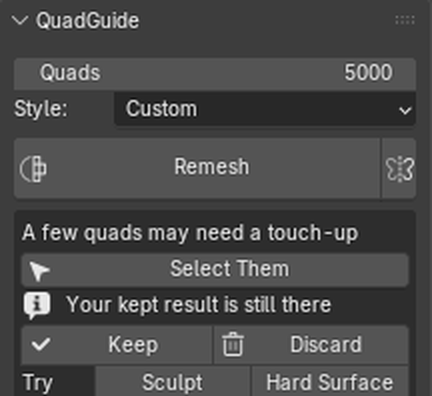
Select Them selects those quads in Edit Mode and frames them. Smooth Vertices or the Relax brush fixes them in seconds. If it keeps happening on the same part, raise Quads a little, or paint that part Denser and Remesh.
Came out torn
When the check finds more than a few pinched quads (a hole, a piece come apart), the card says This one came out torn in places. That is not for you to repair: press another style under Try, or raise Quads and Remesh. Very dense scans (millions of faces) are the usual case today; see the roadmap.
Kept result and candidate
If you already had a result and the new one has problems, the new one arrives as
<name>_quadguide_candidate and your earlier result stays as it was (hidden). Keep makes
the candidate your result; Discard deletes it and shows your earlier result again.
A first result with only a few pinched quads is simply your result.
Retry Until Clean
Before you see a problem, the engine tries to fix it itself (Expert setting Retry Until Clean, on by default): it refills the bad spots, then tries a close variant such as 1 % more quads. When one passes, the card says which, for example checked: clean with 1530 quads. Use that count next time.
Update after moving a guide
Move a guide after a Remesh and the panel offers Update (N regions), above Remesh. It remeshes only the regions that guide borders, plus a band of the faces round them, with the guide where it is now. Every other face keeps its vertices, so what you have already cleaned up stays as it is. It takes a few seconds, and the result stays the same object.
While you move the guide, the viewport shows what Update will touch: those faces are tinted orange, and a line at the bottom left says how many regions there are and about how many quads they hold now ("Update: 2 regions, ~45 quads"). The number is the quads there at this moment, not after Update. The tint goes away after Update.
Update is not offered when:
- there is no result that remembers its regions. Only a result made with Fill Between on does. Press Remesh first.
- no guide has changed since the last Remesh.
When the change reaches the whole result, Update stops and says "Remesh instead".
Try another style
When a result needs fixing, Try offers the other styles: one click remeshes with that style and keeps both results to compare with Show Original / Show Result.
Review
With Expert Settings on (Edit > Preferences > Add-ons > QuadGuide), a Review section under the result lists what to check before you keep it:
| Line | What to look for |
|---|---|
| Quads | Against the count you asked. |
| Poles | Vertices where 3, 5, or 6 or more edges meet. 6+ is flagged: worth a look. |
| Size | The spread of quad sizes against the size asked. |
| Not quads | Should be 0. |
| Open edges | Your mesh's own openings, and any hole the remesh made. |
To see poles and quad sizes on the mesh, turn on Show: Poles and Show: Density under Options.
Save Report
The small export icon next to the result line saves a zip of the last run, to send with a bug report. It asks for one line, What went wrong. The zip holds:
- your mesh, as it went to the remesh (
input.obj), and your guides (guides.txt); - the settings, the result and layout reports, and the log;
about.json: the QuadGuide, Blender and system versions, the quads asked, and your line.
Your mesh is in the zip every time, so look at what you are sending before you send it. A mesh over 50 MB still goes in, but the panel warns that the zip may be too large to mail. Nothing else from your scene is included. The same zip comes from Report a Problem in the Help section: see Reporting a problem.